



Minecraft Refugee’s Guide
This guide is designed for former or current Minecraft players who would like a more lightweight and easily moddable open-source alternative to their usual block game experience.
Background
Luanti is a FOSS voxel game platform (and engine) with a powerful Lua scripting engine, as well as its own official database for community-made content, conveniently named ContentDB. Think of Luanti as Roblox, but inspired by Minecraft instead of LEGO, and no child labor is involved. ContentDB is just a marketplace for games that can be played in Luanti, as well as mods, modpacks and texture packs for those games (with some mods/packs being universal, i.e. supporting multiple games). One of the biggest games published on ContentDB is Mineclonia, a faithful Minecraft clone.
Due to obvious copyright limitations, Mineclonia uses freely available CC-licensed media (textures, sounds, 3D models, etc) to substitute Minecraft assets, meaning that its look-and-feel may be slightly off to a Minecraft player. The rest of Minecraft’s details are recreated mostly by referencing Java Edition (playing Minecraft, observing the features of interest there, and trying to replicate them for Mineclonia). The engine (Luanti) ends up doing most of the dirty technical work, while Mineclonia implements all the gameplay using Lua scripts; such an arrangement has its upsides and downsides, but most notably allows the game developers to focus on making Mineclonia itself, with the trade-off of being limited by Luanti’s capabilities in some gameplay aspects.
Why?
It’s best to think of Mineclonia as another Minecraft edition, just unofficial, made by the community & for the community. As such, it’s also best to compare it to the official Minecraft editions that are currently active.
Compared to Java Edition
Luanti/Mineclonia is cross-platform! Luanti is available for Windows, macOS, GNU/Linux, BSDs, and Android[2], meaning Mineclonia can be played on any device. You can even run Luanti games in your web browser, it’s that portable!
Mineclonia is easier on hardware & more performant. This is mostly thanks to Luanti, but the team behind Mineclonia has also put great strength into optimizing the game to be buttery smooth. Once you compare modded Minecraft JE to modded Mineclonia, the performance difference is inarguable.
Mineclonia is ridiculously moddable! Mods are downloaded to your content collection inside of Luanti, and you can enable select mods on a per-world basis, with e.g. one world vanilla and another in the middle of an epic RPG story, all in one single install. No need to ever restart!
Compared to Bedrock Edition
Mineclonia is much less broken! Critical bugs are not left ignored for years, there are no random deaths, lags are minimal (none in singleplayer), and while some issues remain, it’s nowhere near Bedrock’s levels.
Mineclonia doesn’t beg you to buy stolen content[3]. As Mineclonia is built on volunteer efforts, there’s no reason to put ads or try to force a purchase or two down your throat.
Yet the Luanti/Mineclonia content system is this close! If you did purchase content on the Marketplace, you’ll recognize how similar enabling add-ons on a Minecraft BE world is to enabling mods on a Mineclonia world thanks to Luanti’s modularity! If you created add-ons yourself, some of your tools, like Blockbench, will still work for modding Mineclonia.
How?
To get started, you should first install Luanti. You’ll notice that the main menu is unique compared to most other game launchers, but it’s easy to get used to. If the information here is not sufficient, Luanti Docs have a nice Getting Started page for you to check out!
Singleplayer
Go to the Content tab in the main menu.
Press the Browse online content button.
In the opened content browser, locate the top tab bar and filter for Games.
Locate the search bar in the top-right corner and search for mineclonia.
Select the card titled Mineclonia.
Press the Install button.
Once Luanti is done downloading Mineclonia, go back to the main menu and select the Start Game tab.
Make sure Mineclonia is selected as the game you’re playing: you should see the logo at the top reflect that, and if it doesn’t, press the icon at the bottom that looks like two grass blocks.
Press the New button and enter a name for your world, press Create when you’re done.
Select your newly created world and look at the checkboxes on the left. For now, make sure just the one saying Enable Damage is checked.
Finally, enter the world by pressing Start Game.
From here, you’re dropped into a familiar Survival mode experience.
PC players: The default keyboard controls are similar, with the biggest difference being that opening the inventory is bound to I instead of E in Luanti; change that by pausing the game with Esc, going into Settings, selecting Keyboard and Mouse on the left sidebar, and re-binding it and potentially any other keys under Keybindings.
Mobile players: Default Luanti touchscreen controls will feel somewhat wonky coming from Minecraft. Since Luanti 5.11.0, you can rearrange the UI elements to your liking; see this Luanti Docs article for details.
Multiplayer
Luanti’s client-server architecture involves the server sending game content to the client, meaning that the client doesn’t have to do anything but connect to it and receive the game together with all the mods and modpacks installed on the server. As such, no custom per-server clients are needed, and no version compatibility hacks are needed either, as the clients only need to update themselves, while the servers update all the content.
So, with just a bare Luanti install:
Go to the Join Game tab in the main menu.
Filter the server list for servers running Mineclonia by entering game:mineclonia into the search bar.
Select any one you like and press Register to make an account just for that server.
You’ll be prompted for a username (which doesn’t have to be the same between different servers), and a password. Remember to use a different password for each server! After filling these fields, press Register again.
If you already have an account (so, have already registered on that server), enter your password next to the username instead and just press Login.
This system will be most familiar to those who have played on Minecraft JE Offline Mode (or “cracked”) servers that require players to use custom commands like
/loginand/register, but here it’s built-in and there’s nothing sketchy about it.
And that’s it! You may have to wait for some time for media files to download as with a fresh Luanti install you don’t have any cached yet, but it shouldn’t take too long. Most servers will feature a classic spawn area with some instructions on how to start playing and what the rules are for gameplay and chatting: read those! Mineclonia won’t censor you, but server operators have every right to.
For more information on Luanti multiplayer, see the Luanti Docs article on Servers.
Things to look out for
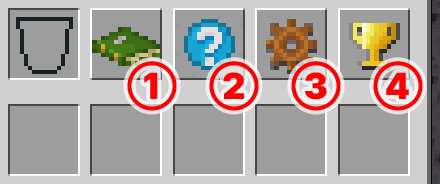
Recipe book, Help, Player Settings & Advancements inventory buttons.
Advancements (“Achievements”) are accessible via a golden trophy button in the survival inventory; Recipe book, Help and Player settings are also placed there as buttons to open their respective full-screen menus.
Sprinting is done with the Aux1 (Special) button due to some Luanti quirks; make sure to have it bound conveniently for you, i.e. to F if you’re a left-handed keyboard player, or put as a button somewhere on the right-hand side if you’re a mobile player.
World generation identical to Minecraft 1.18+ can be enabled with a few settings. However, note that Luanti worlds are limited to ~62,000 nodes (blocks) in both width and length[4] due to technical constraints. This should be enough, but it does mean that terrain beyond ~31,000 blocks from spawn gets cut off.